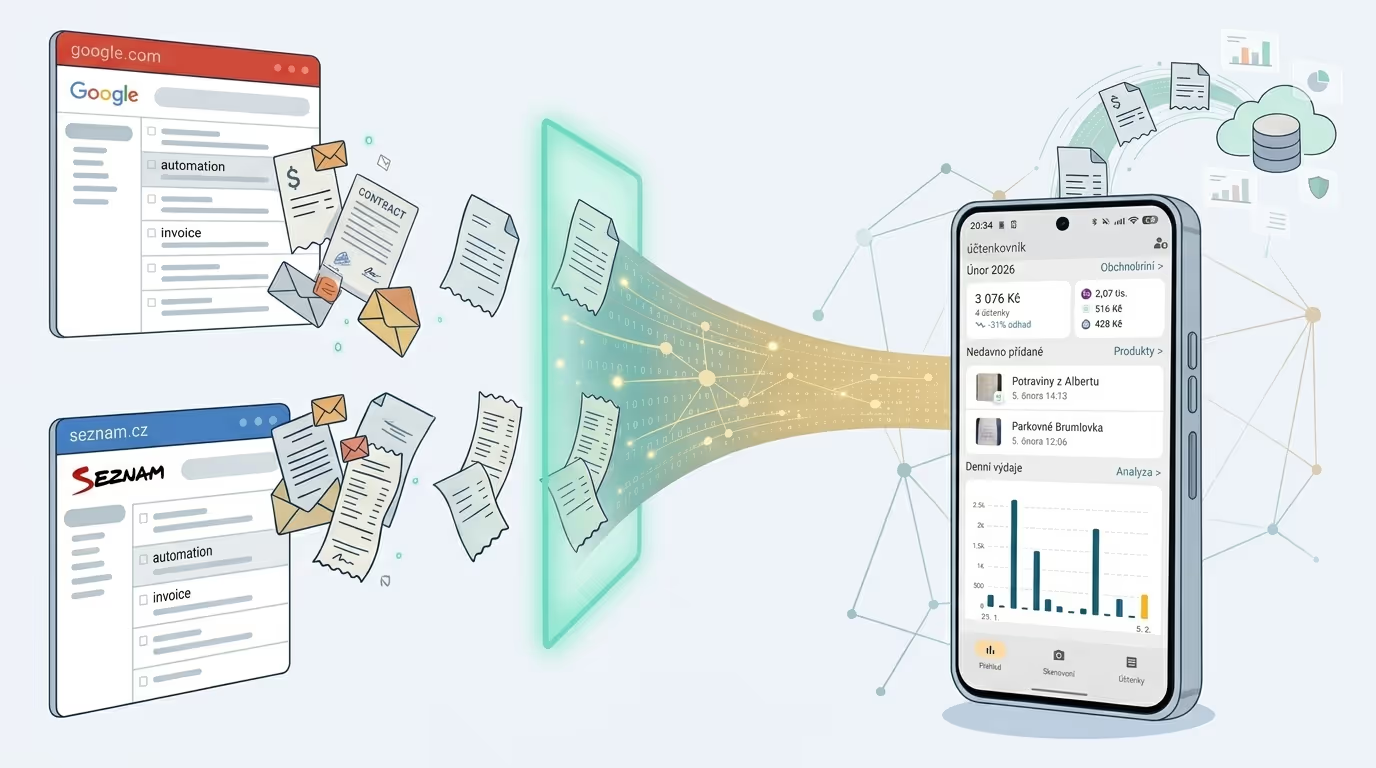
The invoice for your internet, phone, or insurance arrives by email. You open the message, download the attachment, switch to the app, upload it. And next month, all over again.
This whole cycle can disappear. In Zespr you generate your own email address and simply forward the invoice to it — the app processes it and the document shows up on its own, often before you have even opened the attachment. And once you set up a rule in your email client, you do not even have to forward it by hand: invoices send themselves.
How it works
The whole email-forwarding principle comes down to three steps:
- Generate your own email address in the app. This unique address is part of the Premium plan and looks something like this:
your-id@process.zespr.com. - Forward the invoice to this address. You can forward it manually once, or set up a rule in Gmail / your email client that does it automatically every time an invoice arrives.
- Zespr processes the invoice on its own — it extracts the line items, date, merchant, and total amount from the email and creates a document. You will usually see it in the app within a few seconds; occasionally it takes a few minutes.
What we can and cannot do yet
Before you set up forwarding, it helps to know how Zespr handles email.
What works reliably:
- PDFs and images — the app processes attachments in PDF, JPG, PNG, and other common image formats.
- An invoice directly in the email body — if a message has no attachment and the document is written straight into the email text (common with e-shops and subscriptions like Netflix or Spotify), Zespr will process the message body itself. Attachments always take priority — the text is used only when the email has no attachment.
- Any sender — Zespr does not check who sent the message. You can forward from any address, including from your phone or a shared mailbox. So only share the address with people you trust.
What we cannot do yet:
- Only one document per email — if a message contains multiple attachments, the app cannot yet choose between them. So always forward an email that contains exactly one document. If you are sending a scan split across multiple images, the app will process them together (up to three pages). If you have several invoices in one message, split them into separate emails.
Setting it up in Seznam
The process in Seznam email is simple — you just create a single rule:
- Click the gear icon in the bottom left → Settings.
- In the left menu, select Rules and create a new one. Do not forget to mark it as active.
- As the condition, choose the sender you receive invoices from (e.g.
mojeo2@o2.cz). - As the action, select “send a copy” and enter your Zespr address.
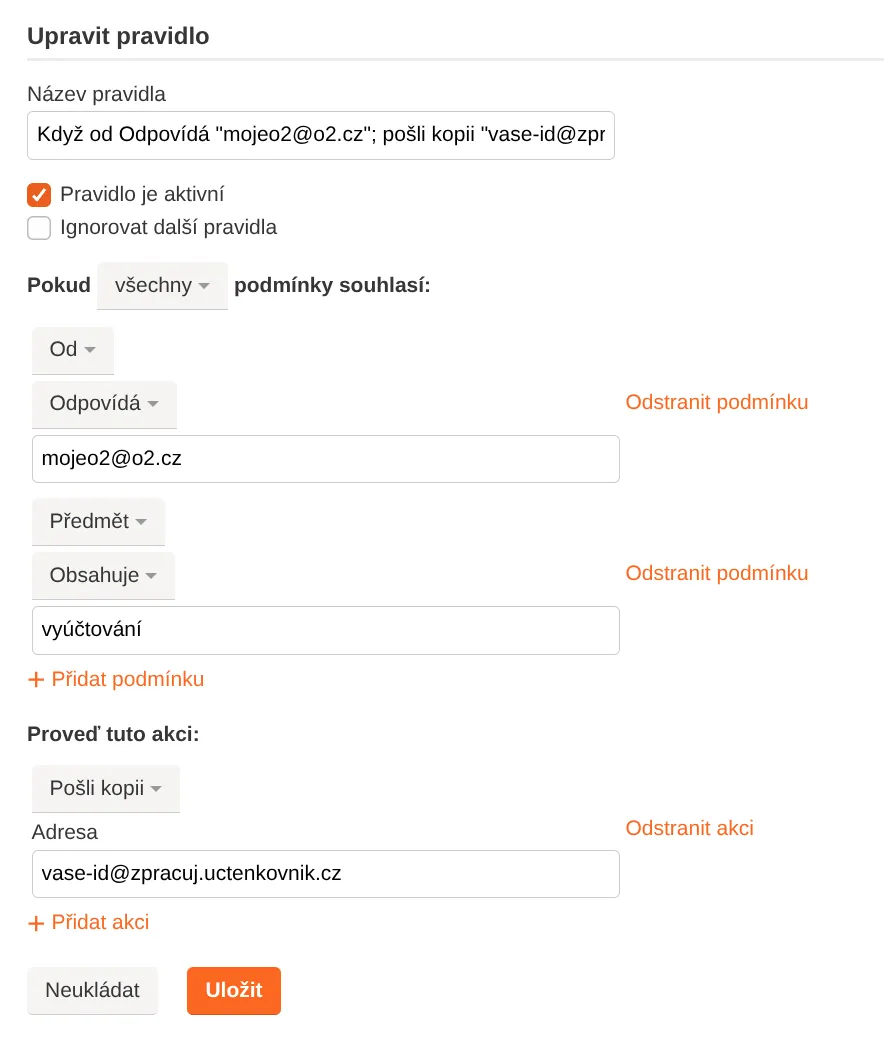
You can also add, for example, filtering by subject line for words like “invoice” or “statement”.
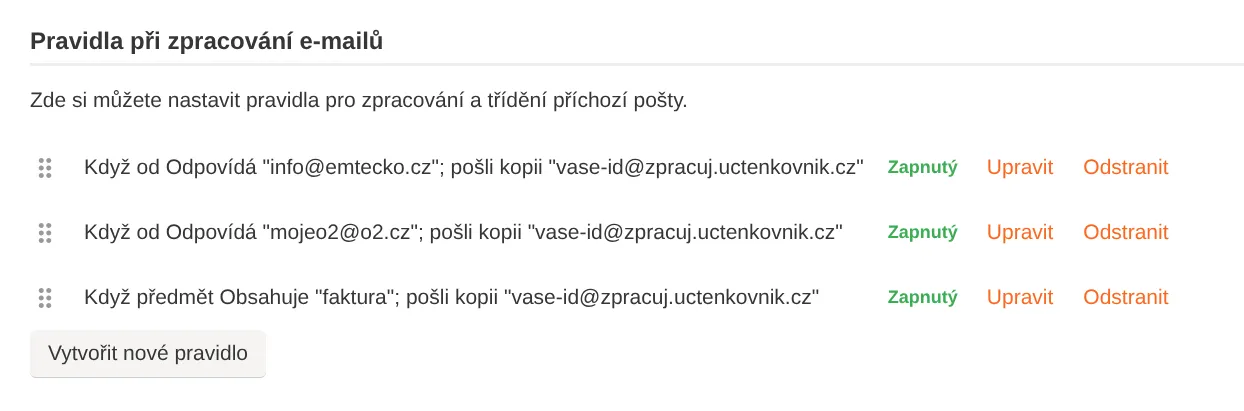
You can find more about rules in the Seznam help.
Setting it up in Gmail
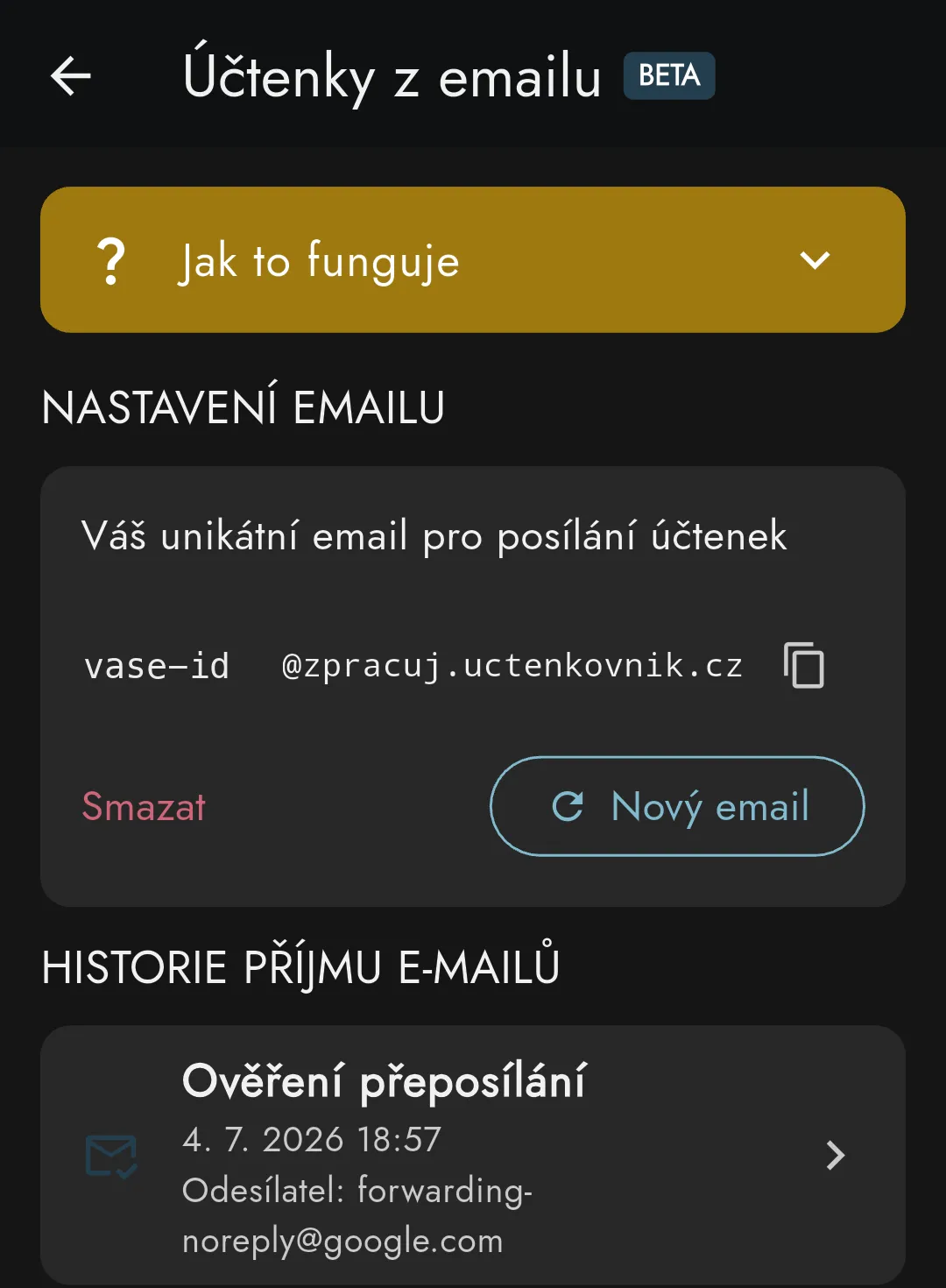
Gmail is a step more cautious than Seznam — before it forwards anything, it wants to verify that you really own the address you want to forward to. Zespr handles that for you — it recognizes Gmail’s verification message and shows it to you right inside the app.
The process has two parts: first you allow Gmail to forward to your Zespr address, then you create a filter that sends only selected invoices to it — not your entire inbox.
Step 1 — allowing and verifying the address:
- In Gmail, open Settings (the gear icon in the top right) → See all settings.
- Go to the Forwarding and POP/IMAP tab and click Add a forwarding address.
- Enter your Zespr address (
your-id@process.zespr.com), click Next, and confirm Proceed → OK in the dialog. - Gmail sends a verification email with a link and a confirmation code to that address. You do not have to go anywhere — Zespr recognizes it and shows it to you right inside the app, in the inbox section for your email address. Just open the attached link (or copy the code back into Gmail) and forwarding is enabled.
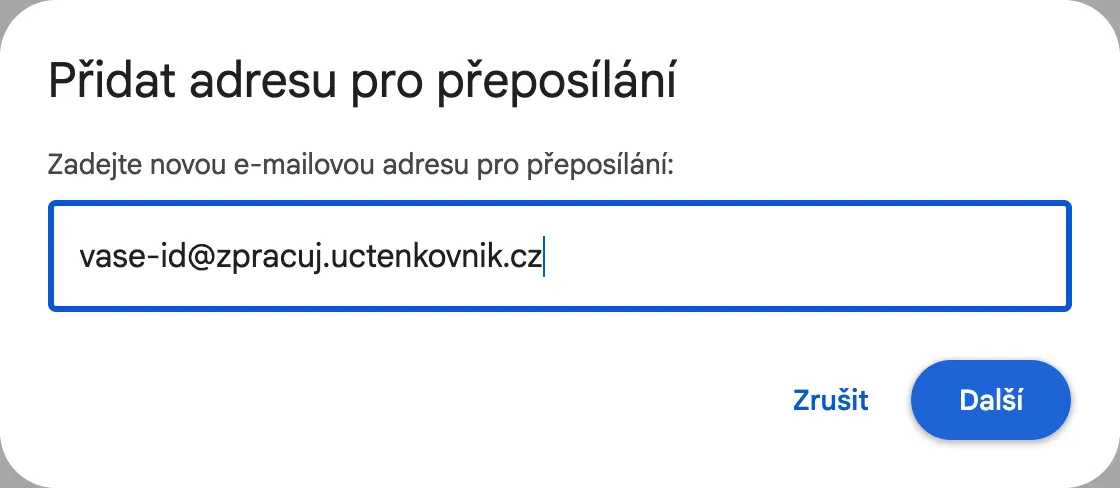
Zespr does not process the verification message as a document — it recognizes that it is a confirmation from Gmail and sets it aside. So you will not end up with an empty receipt.
Step 2 — a filter for invoices:
Now, in Gmail, do not turn on the Forward a copy of incoming mail option — that would send absolutely all of your mail into Zespr. Instead, create a filter just for invoices:
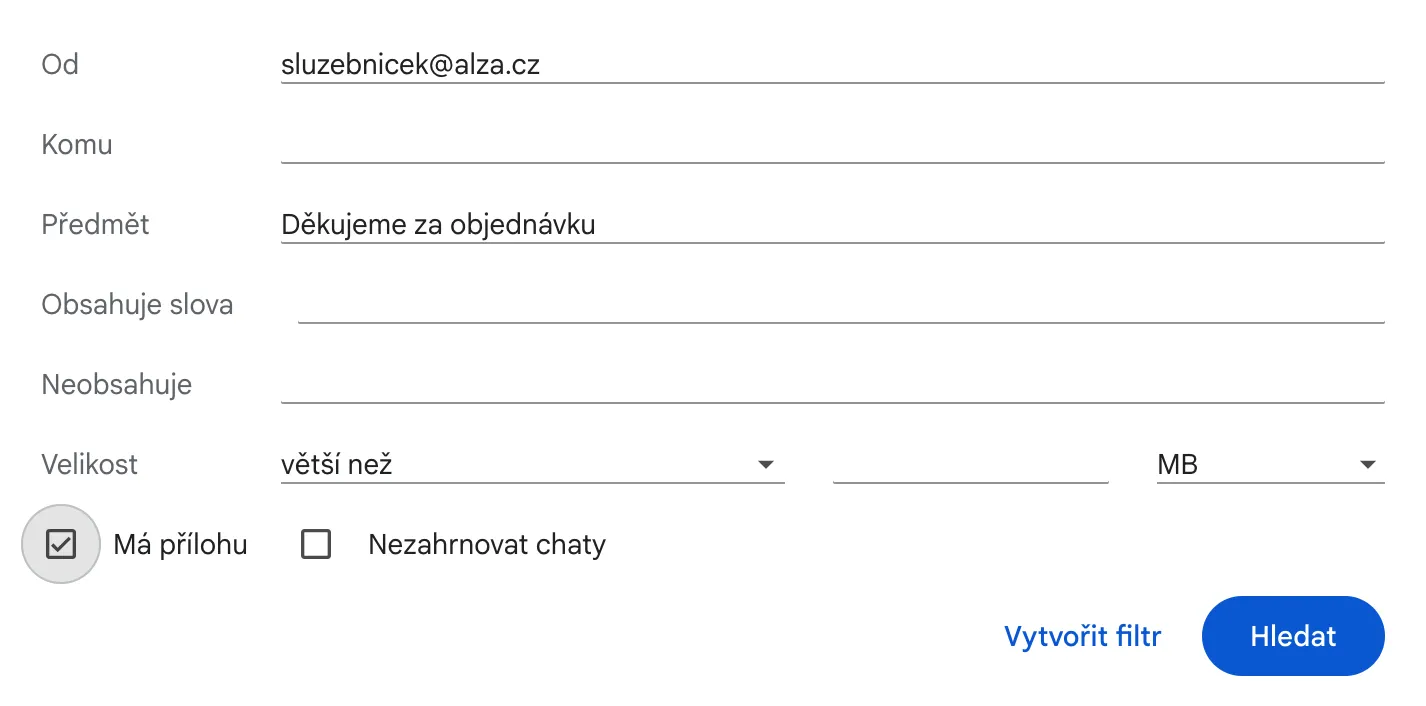
- In the search box at the top, click Show search options.
- Fill in the invoice sender (e.g. enter
o2.czin the From field) or the word invoice in the Subject field; feel free to also tick Has attachment. You can check your choice with the Search button. - Click Create filter.
- Tick Forward it to and select the Zespr address you just verified. If you also want to forward invoices that arrived earlier, tick Apply filter to matching conversations as well.
- Confirm with the Create filter button.
From now on, every new invoice from that sender travels into Zespr on its own.
Typical scenarios
A few invoices that people commonly have flow into Zespr automatically — maybe you recognize some of them:
- Internet and mobile plans — providers like O2, T-Mobile, and Vodafone send invoices monthly. One filter per sender and you are done.
- Car or loan payments — leasing companies send a regular document by email.
- Insurance — liability and comprehensive car insurance arrive once a year or quarterly.
- Streaming services and subscriptions — Netflix, Spotify, iCloud, Microsoft 365.
- E-shop invoices — retailers like Alza, Notino, or Zalando. A simple email forward.
Over time, you build up rules for all your recurring invoices, and Zespr quietly absorbs them in the background.
Summary
- In Zespr, you generate your own email address for receiving invoices.
- Always forward one document per email (a PDF or image, up to 25 MB).
- We process it from the attachment or straight from the message body — attachments take priority.
- In Seznam and Gmail alike, you set up a rule (filter) that forwards selected messages automatically.
Forwarding email invoices saves you most of the manual work around your fixed expenses. And if you want to set up a whole expense-tracking system from scratch, we are preparing a detailed guide — coming soon on the blog.